How to Update Free Fire Panel to the Latest Version
Update Free Fire Panel safely: check your version, install over the existing app, and keep your sensitivity setup exactly as you tuned it.
Read more
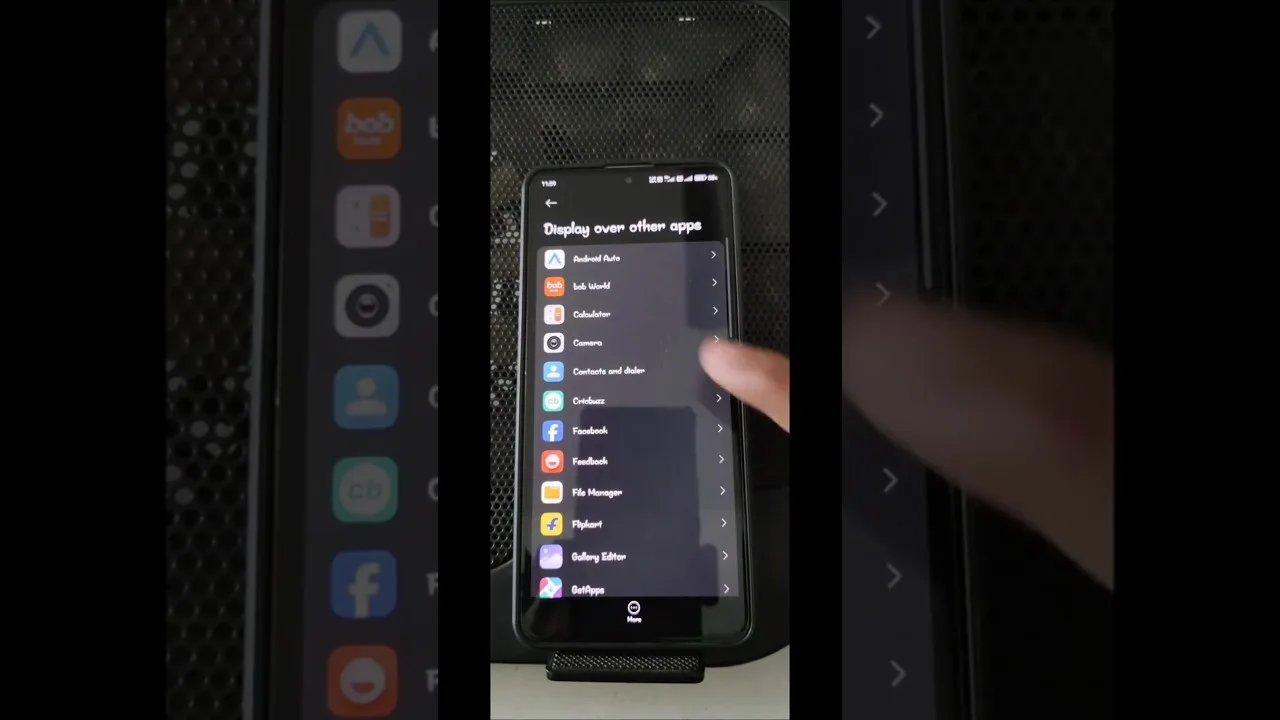
You open your session, reach for the panel, and it simply is not there. A missing panel feels like a broken app, but the causes are almost always environmental — the overlay permission, Android's battery management putting the utility to sleep, or a stale process after an update — and each has a short, specific remedy. This guide to the Free Fire Panel missing panel problem works through them in test order.
Do not reinstall first. Reinstallation resets permissions and risks profiles, and in the large majority of cases the answer is two minutes away in settings.
No permission, no panel — an overlay cannot draw without draw-over-apps access, and that grant can quietly disappear after system updates, permission resets, or cleaner apps doing their rounds. Open Android's special-access list for overlay apps and confirm Free Fire Panel is allowed.
If the toggle was off, switching it on and relaunching usually ends the story. The full meaning of this and neighbouring permissions is covered in our permissions explained guide.
Modern Android suspends background apps with enthusiasm, and a suspended utility explains the maddening variant of this fault: the panel appears, then vanishes mid-session. Exempt Free Fire Panel from battery optimisation in its app-info battery settings and test a full session.
Some manufacturers add a second power manager with its own app list and autostart controls. If the standard exemption does not hold, hunt the brand's own battery settings and allow the app there as well — double gatekeeping is common on budget devices.
Force-stop the app from its app-info screen. Reopen the panel first, confirm it presents correctly over the home screen, and only then launch the game. Sequence matters because the overlay service must be alive and authorised before the game takes exclusive possession of the display.
After a phone restart, repeat the same order. This clean-start sequence clears the stale-process cases, which cluster after app or game updates — the same territory our update guide covers from the other side.
Check the remaining ordinary suspects: storage so full the app cannot hold state, a second overlay utility competing for the screen, or a game update that changed how it presents. Disable other overlays for one session to test the conflict theory before concluding anything.
If the panel still refuses, the wider fault tree takes over — our not working fixes continue from general app health to the reinstall that belongs, as ever, at the end of the list rather than the start.
Permission, power, process. Nearly every missing panel in the history of the complaint has been one of those three words, and each check takes about two minutes. Run them in order before any drastic remedy, and the panel will almost always be waiting at the next session.

Update Free Fire Panel safely: check your version, install over the existing app, and keep your sensitivity setup exactly as you tuned it.
Read more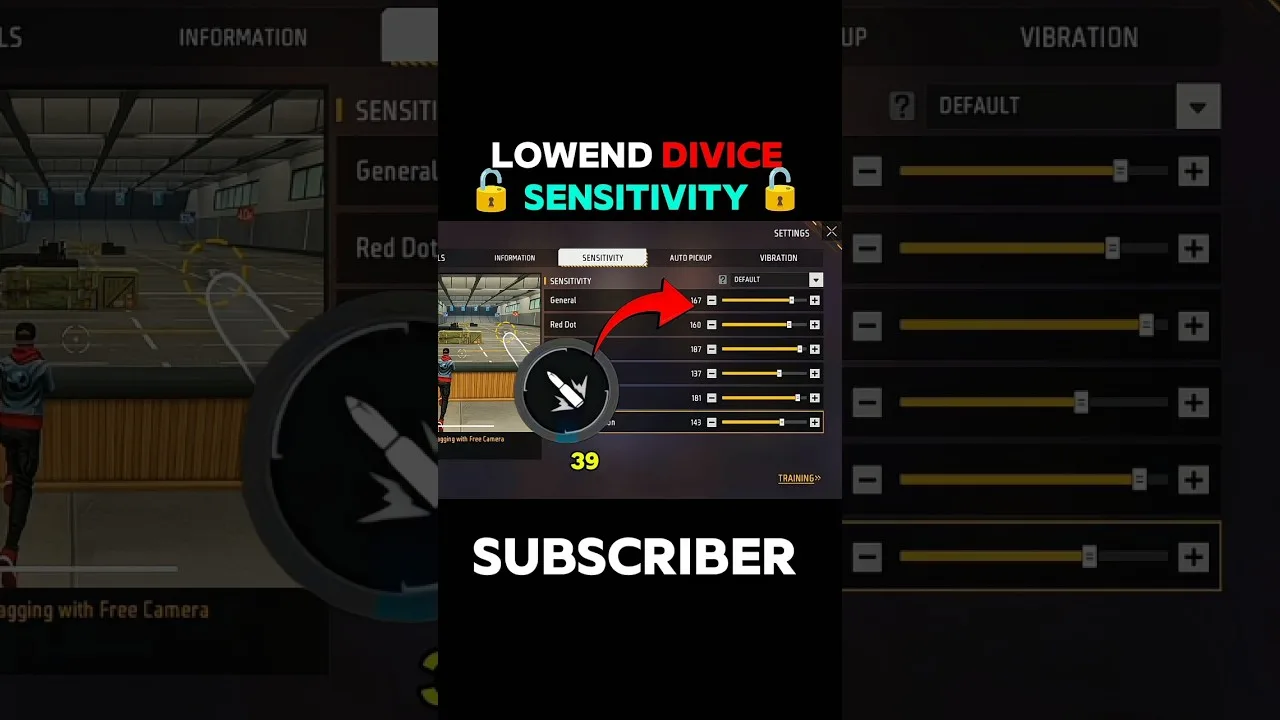
Beginner sensitivity tuning with Free Fire Panel: what the settings mean, a safe starting method, and how to reach a setup that is truly yours.
Read more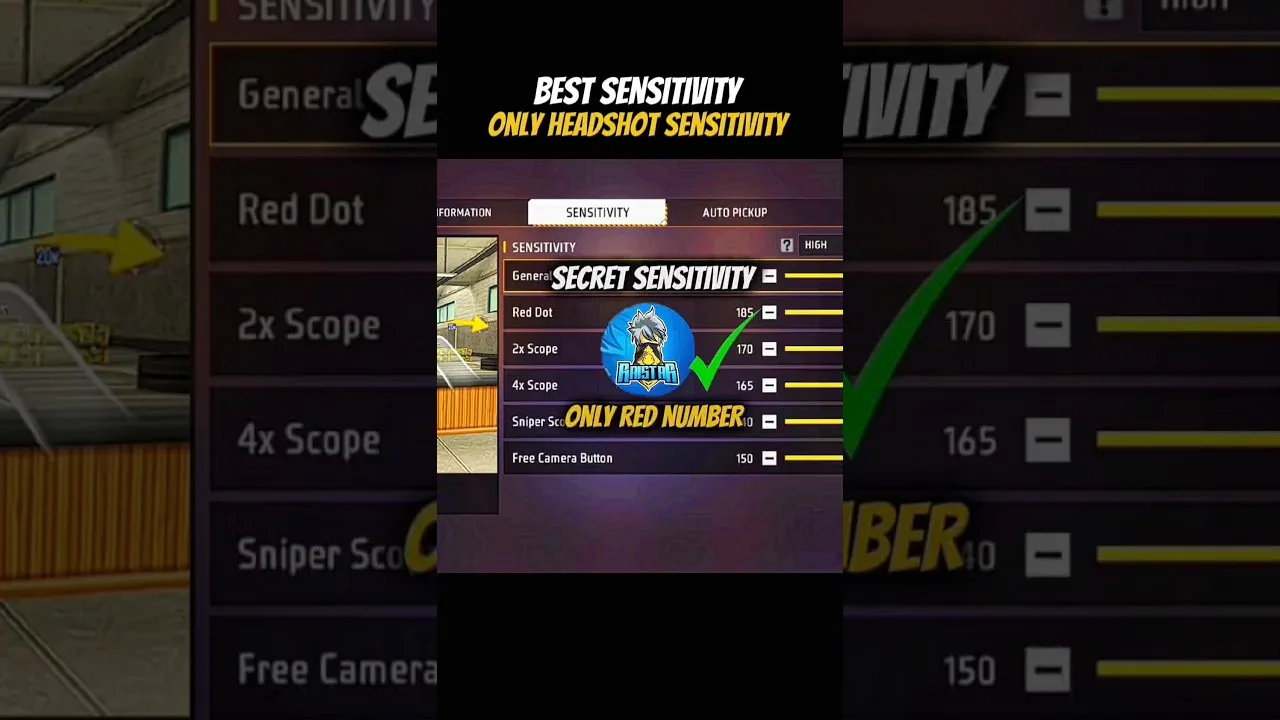
Configure Free Fire Panel for cleaner drag headshots: the general and red dot relationship, testing at two distances, and the practice that converts settings into skill.
Read more